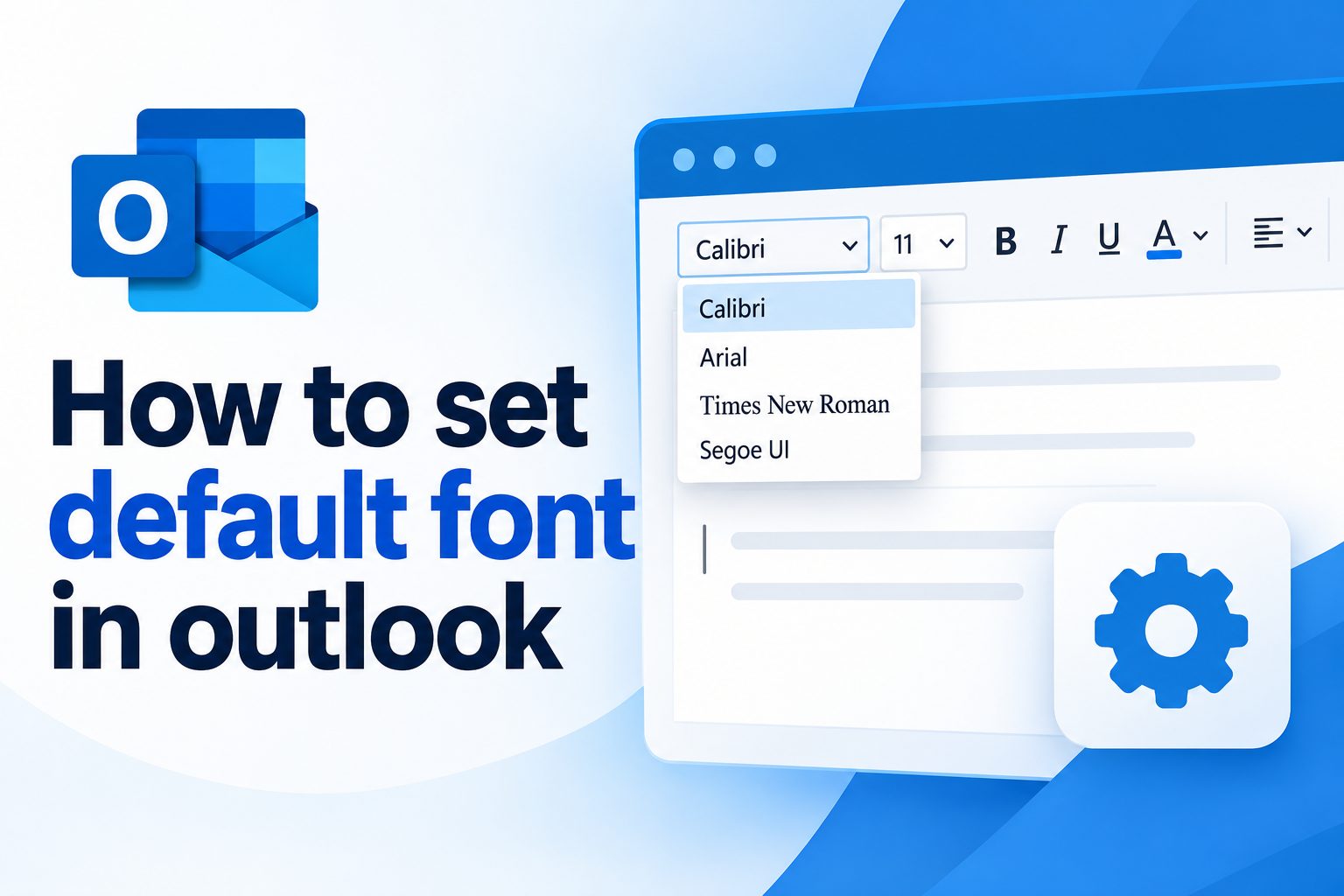
Learning how to set default font in Outlook can make every email look more consistent, professional, and comfortable to read. Instead of changing the typeface, size, or color every time you write a message, you can choose your preferred formatting once and let Outlook apply it automatically. This is especially useful for workplace communication, customer emails, newsletters, and anyone who wants a cleaner inbox experience. Outlook includes separate font settings for new messages, replies and forwards, and plain-text emails, so understanding each option helps you create the exact result you want. In this guide, you will learn how to change the default font in Outlook on desktop and web, how the settings differ, what to do when the font does not apply, and which professional formatting choices work best. You will also find practical examples, common mistakes, expert tips, and answers to frequently asked questions.
Why Set A Default Font In Outlook
Changing the default font is a small adjustment, but it can improve the way your emails look and feel. A consistent style saves time and helps recipients recognize your messages as clear, organized, and professional.
1. Save Time When Writing Emails
A default font prevents you from repeatedly selecting the same typeface, size, and color whenever you begin a message. Once configured, Outlook uses your preferred settings automatically, allowing you to focus on the content instead of formatting every paragraph manually.
2. Create A Consistent Brand Style
Businesses often use a consistent font across emails, documents, and other communication channels. Setting a default font helps employees maintain a recognizable visual style, especially when messages are sent to customers, partners, applicants, or external organizations.
3. Improve Reading Comfort
Some default fonts are too small, decorative, or difficult to read on different screens. Choosing a clear typeface with an appropriate size makes messages easier to scan on computers, tablets, and mobile devices without distracting readers from the main information.
4. Make Professional Communication Stronger
Formatting affects how readers perceive an email. A simple font such as Aptos, Arial, Calibri, or Verdana usually appears more professional than an unusual decorative font. Consistent formatting can make even short messages seem more polished.
5. Reduce Formatting Mistakes
When formatting is handled automatically, you are less likely to send messages with inconsistent sizes, random colors, or difficult-to-read typefaces. A default font provides a dependable starting point for every new email and reply.
6. Support Accessibility
A readable font benefits people with visual limitations, aging eyes, or small displays. Choosing a simple font, sensible size, and strong contrast can make your messages more accessible without requiring special formatting in every individual email.
Outlook Font Settings You Can Change
Outlook gives you several formatting choices rather than one universal font setting. Knowing what each option controls helps you avoid changing one type of message while leaving another unchanged.
1. New Message Font
The new message setting controls the appearance of emails you create from a blank message window. This is the setting most people want to change first because it determines the font used when composing a brand-new email.
2. Reply And Forward Font
Replies and forwarded messages can use a separate font from new emails. Some users prefer a slightly different style for responses, while others want every message to look identical. Check this option if your replies continue using the old formatting.
3. Plain Text Font
Plain-text messages do not support the same formatting features as HTML emails. Outlook may still let you choose a display font for composing or reading plain-text messages, but recipients may see their own preferred font depending on their email application.
4. Font Family
The font family is the typeface itself, such as Arial, Calibri, Aptos, Georgia, or Times New Roman. For professional email, select a widely available font because unusual fonts may be replaced when recipients open your message on another device.
5. Font Size
Font size controls readability and visual balance. A size between 10 and 12 points is common for business email, although larger text may be more comfortable for some readers. Avoid using very small text simply to fit more information into a message.
6. Font Style And Color
You can usually choose bold, italic, underline, and text color along with the font family and size. Use these options carefully. Excessive color or styling can make ordinary messages look distracting and reduce the clarity of important details.
How To Set Default Font In Outlook Desktop
The desktop version of Outlook includes detailed stationery and font settings. The exact labels may vary slightly between versions, but the overall process is similar across recent Windows editions.
1. Open Outlook Options
Launch Outlook on your computer and open the application settings. In many Windows versions, select the File menu, then choose Options. This opens the main Outlook settings window, where you can control mail, calendar, language, and formatting preferences.
2. Select The Mail Category
Inside Outlook Options, choose the Mail category from the navigation panel. This area contains settings related to message composition, signatures, spelling, replies, tracking, and message format. Font controls are normally located within the section for composing messages.
3. Open Stationery And Fonts
Look for the option labeled Stationery and Fonts. Selecting it opens a separate window with controls for personal stationery. This is where Outlook allows you to define fonts for new messages, replies, forwards, and plain-text composition.
4. Choose The Message Type
Review the areas labeled New mail messages and Replying or forwarding messages. Select the Font button beside each category you want to change. If you want a consistent appearance, configure both sections instead of changing only new messages.
5. Select Your Formatting
Choose the font family, style, size, color, and any additional effects. Keep the formatting simple and test how it looks in the preview area. A clean font with moderate sizing is usually more useful than an elaborate design.
6. Confirm The Settings
After choosing your preferred formatting, select OK to close the font window, then confirm the remaining settings windows. Outlook may require several confirmations before the changes are saved, so continue selecting OK or Apply until you return to the main application.
7. Test A New Message
Create a new email and click inside the message body. The cursor should use the font you selected. Test a reply as well, because replies and forwards may have separate settings. If one message type looks different, return to Stationery and Fonts and update that category.
How To Change The Default Font In Outlook On The Web
Outlook on the web has a different settings layout from the desktop application. Changes made in the browser may not always modify the desktop version, so treat the two environments as separate when checking your results.
1. Open Mail Settings
Sign in to Outlook through your browser and open the settings menu. Choose the option to view all Outlook settings, then go to Mail. The mail settings area contains controls for composing, replying, layout, and other email preferences.
2. Find Compose And Reply
Open the Compose and reply section. This area normally includes a formatting toolbar or default message formatting controls. Depending on your account and organization, the available choices may be more limited than those in the desktop application.
3. Select A Font And Size
Choose the font family and text size you want Outlook to use when composing messages. Select a familiar typeface that works well across email applications. If the web version offers color or style choices, use them sparingly for a professional appearance.
4. Review The Message Editor
Use the preview or editing area to check how your selection appears. Look at spacing, readability, and the overall balance of the message. A font that looks attractive at one size may appear too large or too small in the actual email editor.
5. Save The Changes
Some Outlook web settings save automatically, while others require you to select Save. Do not close the settings page until you have confirmed that the change has been stored. Then open a new message and check the formatting directly.
6. Test Replies Separately
Write a reply to an existing message and compare it with a new message. If the reply uses different formatting, the account may apply separate rules for responses or quoted text. Adjust the relevant compose settings if that option is available.
Best Fonts For Professional Outlook Emails
The best default font depends on your audience, organization, and communication style. In most cases, readability and compatibility matter more than personal creativity.
- Aptos: A modern and clean choice that works well in many current Microsoft environments.
- Arial: A widely supported sans-serif font that remains clear on different screens.
- Calibri: A familiar office font that provides a balanced, professional appearance.
- Verdana: A highly readable option with generous spacing, especially useful for smaller screens.
- Georgia: A more traditional serif choice that can work well for formal or editorial communication.
- Times New Roman: A classic option, although it may appear less modern in everyday business email.
Common Outlook Font Mistakes To Avoid
Even after changing the default font, a few common mistakes can create inconsistent or unprofessional messages. Recognizing these issues makes troubleshooting easier and helps you maintain a reliable email style.
1. Changing Only New Messages
Many people update the font for new emails but forget the reply and forward settings. As a result, messages look different depending on how they were created. Always check each message category if consistency matters to you or your organization.
2. Choosing An Unusual Font
A decorative or uncommon font may not be installed on the recipient’s device. Their email program can substitute another typeface, changing the appearance of your message. Select a standard font that is widely available across operating systems.
3. Using Text That Is Too Small
Small text may allow more information to fit on the screen, but it can make messages tiring to read. Avoid reducing the font size to solve a long-email problem. Instead, shorten the message, use headings, or separate complex information into clear sections.
4. Applying Too Many Colors
Bright colors and multiple text shades can weaken visual hierarchy. Readers may not know which information matters most, and some colors become difficult to see against different backgrounds. Use dark, readable text and reserve color for limited emphasis.
5. Assuming Every Message Uses The Setting
Signatures, pasted content, templates, and copied text can carry their own formatting. A default font does not automatically clean up every piece of content you insert. Review pasted material and remove unwanted formatting when necessary.
6. Forgetting Mobile Appearance
An email that looks balanced on a large monitor may feel oversized or cramped on a phone. Test important messages on smaller screens when possible. Keep font choices simple, avoid excessive styling, and use short paragraphs for mobile readability.
Best Practices For Outlook Font Formatting
Good font settings should make email easier to read without drawing attention away from the message. These practical habits help you create a consistent and accessible communication style.
1. Use A Readable Default Size
Choose a comfortable size that most readers can view without zooming. Around 10 to 12 points is common for professional email, but the best choice depends on the font. Always judge the actual appearance rather than relying only on the number.
2. Keep Body Text Simple
Use one primary font for normal paragraphs. Switching between several typefaces can make a message look disorganized and may create compatibility problems. If you need visual distinction, use spacing, short headings, or restrained bold text instead.
3. Use Bold For Purpose
Bold formatting works well for deadlines, labels, action items, and short headings. Avoid bolding entire paragraphs because it reduces emphasis and can make the message appear visually heavy. Highlight only the information readers truly need to notice.
4. Check Contrast Carefully
Dark gray or black text on a light background is usually the safest choice. Pale colors may look attractive in the editor but become difficult to read in practice. Consider accessibility and different display settings before choosing a colored default.
5. Match Your Organization’s Standards
If your workplace has a brand guide, follow its font, color, and size recommendations. Personal preferences should come second to organizational consistency, especially when emails represent a company or department in external communication.
6. Review Before Sending
Default settings reduce effort, but they do not replace proofreading. Before sending, check whether copied content, signatures, attachments, or quoted replies introduced inconsistent formatting. A brief review can prevent a polished message from looking unfinished.
Outlook Font Examples For Different Users
Different people need different defaults. These examples show how you can choose a practical style based on the type of communication you send most often.
1. Office Professional
An office professional may choose a standard sans-serif font at 11 points with black text. This combination works for internal updates, meeting follow-ups, and customer communication because it is neutral, readable, and unlikely to create compatibility issues.
2. Customer Support Agent
A support agent may benefit from a clear 11- or 12-point font with strong contrast. Customer replies often contain instructions, troubleshooting steps, and next actions, so readability is more important than decorative styling or unusual colors.
3. Executive Assistant
An executive assistant may use a polished but restrained font style for scheduling messages and formal correspondence. A familiar typeface, consistent size, and limited bold formatting can make invitations, confirmations, and follow-ups appear organized.
4. Student Or Researcher
A student or researcher may prefer a traditional serif font for formal academic communication. However, the message should remain easy to read on screen. Avoid copying document formatting directly into email if it creates excessive spacing or inconsistent sizes.
5. Marketing Professional
A marketing professional may want subtle brand color or a specific company font. Before applying those choices as a default, confirm that the font is widely supported and that the color remains readable for people using different devices or accessibility settings.
6. Personal Email User
A personal user has more freedom to choose a preferred style, but readability still matters. A friendly font can work for informal communication, while a simple standard font remains the safest choice for appointments, forms, applications, and important notices.
Advanced Outlook Font Tips
Once your basic font settings work correctly, a few additional habits can help you manage formatting more effectively across different messages, devices, and recipients.
1. Separate Defaults From Signatures
Your signature may use its own font settings and can override part of the message style. If the body text and signature look different, edit the signature separately and choose compatible formatting rather than assuming the default message font controls both.
2. Use Clear Formatting When Pasting
Content copied from websites, documents, or other email messages often includes hidden formatting. If pasted text looks different, use Outlook’s clear-formatting option or paste without formatting when available. Then apply your default style consistently.
3. Test HTML And Plain Text
HTML messages support fonts, colors, spacing, and other visual choices, while plain-text messages are intentionally limited. Test both formats if you frequently communicate with systems or recipients that require plain-text email.
4. Consider Organization Policies
Some business accounts manage fonts, signatures, or message templates centrally. If your personal changes do not remain active, an administrator may be applying organization-wide settings. Contact the appropriate support team before repeatedly changing the same options.
5. Keep Templates Consistent
Saved templates can contain their own formatting and may not follow your current default. Review frequently used templates after changing fonts. Update them when necessary so automated replies and recurring messages match your everyday email style.
6. Check Different Devices
Desktop Outlook, browser Outlook, and mobile apps may display formatting differently. Send a test message to yourself and review it on more than one device. This reveals problems with font size, spacing, color, or substituted typefaces before they affect important communication.
Frequently Asked Questions
1. How Do I Set The Default Font In Outlook?
In desktop Outlook, open File, choose Options, select Mail, and open Stationery and Fonts. Choose the font for new messages and separately configure replies and forwards. In Outlook on the web, open all settings, go to Mail, select Compose and reply, choose your formatting, and save the changes.
2. Why Does Outlook Keep Using The Old Font?
The old font may remain because you changed only the new-message setting, while replies and forwards use a separate preference. Pasted content, templates, signatures, or organizational policies can also override the default. Test each message type and inspect inserted content for additional formatting.
3. Can I Use A Custom Font In Outlook?
You can usually select any font installed on your computer, but recipients may not have that font. Their email application may replace it with a substitute, changing the appearance. For reliable communication, choose a common font unless you know the audience uses the same typeface.
4. Does Changing The Font Affect Existing Emails?
Changing the default font normally affects messages you create after the change. It does not automatically reformat emails already sent or received. Existing drafts may also retain their original formatting, so you may need to update them manually before sending.
5. What Is The Best Font Size For Outlook Emails?
A font size between 10 and 12 points is common for professional email, but readability should guide the final choice. The same point size can look different across font families. Choose a size that remains comfortable on both large monitors and smaller screens.
6. Can Outlook Mobile Use A Custom Default Font?
Mobile Outlook offers fewer formatting controls than desktop Outlook or the web version. Your messages may use the mobile app’s standard formatting, even if you changed desktop settings. For important emails, review the message on a phone before relying on a specific appearance.
Conclusion
Setting a default font in Outlook saves time, improves consistency, and makes your emails easier to read. Desktop users can adjust fonts for new messages, replies, forwards, and plain-text communication through Stationery and Fonts. Outlook on the web provides similar controls through its Mail and Compose and reply settings, although the available options may differ.
Choose a familiar, readable font, use a comfortable size, and avoid excessive colors or decorative styling. Remember that signatures, templates, pasted content, mobile apps, and organization policies can affect the final appearance. After changing your settings, test both new messages and replies so your preferred formatting works where you need it most.